Sorting out aspect ratios and black bars at home
You put on a film or a rugby match and the picture arrives with thick black bars — sometimes along the top and bottom, sometimes down the sides. The first instinct in most households is to blame the stream or the internet connection. In most cases neither is responsible. What you are looking at is a mismatch between the proportions the content was made in and the proportions your TV or player has been told to show.
Three assumptions tend to send people in the wrong direction when this happens. This piece takes each one, explains what is actually going on, and then points to the specific settings worth checking — on the television itself and inside the players most people use.
If you are still setting up a service, the device list and available plans are on the landing page.
What black bars are actually telling you
The most common assumption is that bars mean something has gone wrong: a broken stream, a low-quality feed, a resolution problem. That is rarely accurate. Black bars appear when the aspect ratio of the content does not match the aspect ratio of your display.
Aspect ratio is the relationship between width and height. Most modern televisions work at 16:9 — sixteen units wide for every nine units tall. A film shot at 2.39:1 is considerably wider than that, so when it plays on a 16:9 screen, horizontal bars fill the space above and below. A channel broadcasting a 4:3 picture — common in archive footage and some news feeds — is narrower, so vertical bars appear on either side. In both cases the stream is delivering exactly what was made; the bars are the display filling in the space it cannot use.
It is also possible to see bars on both axes at once. That happens when a 4:3 signal has already been letterboxed before it reaches your device — adding horizontal bars — and then your TV adds vertical bars on top. The fix is the same in every case: start by correcting the TV's own picture setting.
The TV's picture size setting is usually the culprit
The second assumption is that the player or the streaming device manages aspect ratio automatically, so the TV's own picture menus are irrelevant. In practice, the TV's picture size setting operates independently of whatever app or player is running. If it was left in a zoom or stretch mode during a previous session, it will distort every source until someone changes it back.
On Samsung televisions, the path is usually Settings > Picture > Picture Size Settings > Picture Size. The correct choice for most streaming is 16:9 Standard or Screen Fit. On LG sets, look for Aspect Ratio under the Picture menu; Just Scan displays the full picture without zooming or cropping. Other manufacturers use similar labels — picture format, screen mode, zoom — but the control is always somewhere in the picture settings.
A household where more than one person uses the television is particularly susceptible to this. Someone adjusts the mode for a 4:3 broadcast or a gaming session, and the setting stays. The next person to sit down finds every stream distorted or barred until they locate the same control. Checking the TV first will often resolve the problem across every source at once, without touching the player.

Common questions
- Why do some channels always have bars even when the TV setting is correct?
The channel itself is broadcasting in a ratio different from 16:9 — often 4:3 for archive or news content, or a cinematic ratio wider than 16:9 for films. In those cases the bars are correct; they reflect the source material's dimensions, not a fault in the stream.
- My TV keeps stretching the picture automatically. How do I stop it?
Open the TV's Picture or Screen menu and find the aspect ratio or picture size control. Change any zoom, stretch or wide mode to 16:9, Just Scan (LG) or Screen Fit (Samsung). Once set, the TV will display the picture at its natural proportions without adding cropping or distortion.
- Can I fix the picture on a Fire TV Stick without using the television remote?
Yes. Press and hold the Home button on the Fire TV remote to reach display settings quickly, or navigate through Settings > Display & Sounds. Set the resolution to match your TV's native resolution. If bars remain after that, adjust the aspect ratio inside the player, as player-level settings override the device default for each stream.
- Does this problem occur more with certain types of content?
It is most noticeable with 4:3 content such as older archive channels and some news feeds, and with films shot at a very wide cinematic ratio. Standard 16:9 content on a correctly configured TV should fill the screen without any bars. If you see bars on 16:9 content, the TV or player is almost certainly set to an incorrect mode.
Stretching the picture is not a substitute
The third assumption is that filling the frame — by stretching or zooming away the bars — is a reasonable trade-off. The logic is that a full screen feels more like watching television. In practice, stretching replaces one visible problem with another.
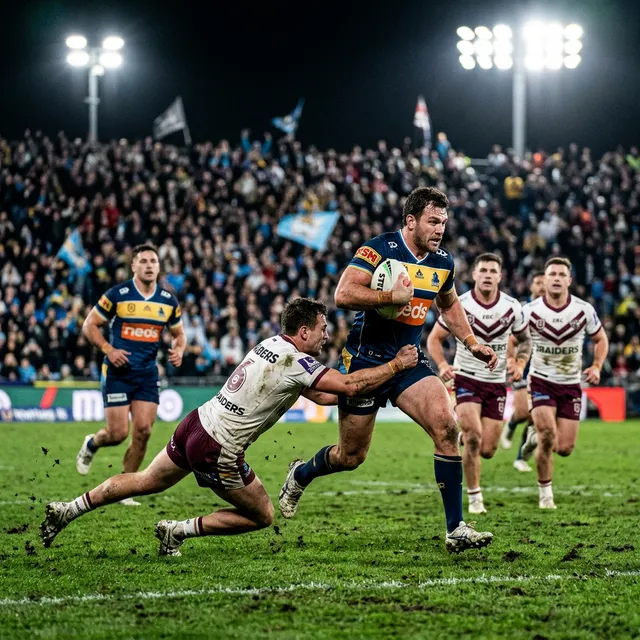
A 4:3 image stretched horizontally to fill 16:9 makes people and objects wider than they are. On a news feed, faces look flat. On sport, the distortion is most obvious on anything with a known shape: the markings on a tennis court or a rugby pitch have fixed, familiar proportions, and the difference is visible within moments. Text graphics — captions, scoreboards, on-screen information — are stretched too, which affects readability.
Zooming rather than stretching avoids the distortion but crops the frame instead. You lose part of the top, bottom or sides of the original picture. For content filmed with meaningful detail near the edges, that means missing things the director chose to show.
The bars are not empty space that could be filled with more picture. They are the correct representation of content composed for different proportions. Thick bars on a 4:3 source belong there; thin letterbox bars on a 16:9 programme are usually a deliberate stylistic choice made in post-production.
Player settings and device-level controls
If the TV setting is correct and bars remain, move to the player.
TiviMate lets you adjust the aspect ratio during playback — long-press the screen to open the video settings, then look for the aspect ratio or scale option. Auto is the right starting point; switch to Fit if bars persist on content that should fill the frame.
IPTV Smarters Pro puts its aspect ratio control in the full-screen playback toolbar. Tap the screen to reveal the toolbar if it is hidden, then look for the scale or aspect icon. It cycles through modes including Fit, Crop and several fixed ratios.
IBO Player surfaces its video scaling options from the settings panel in the main menu. The option may be labelled video ratio or aspect mode.
On MAG boxes, the portal player has a picture format button on the remote. The key that triggers it varies by remote model; if it is not immediately clear, the printed guide that came with the device will identify it, or look for a function key labelled PIC, FORMAT or MODE.
On a Fire TV Stick, go to Settings > Display & Sounds > Display and confirm that the HDMI resolution matches your TV's native resolution. A mismatch at device level can cause scaling before the image even reaches the player. If the resolution is correct and bars remain, the aspect ratio control inside the player is the next step.
For those setting up Android TV, Four UK IPTV sites for Android TV households, compared covers how display settings interact with player behaviour across different configurations. The article on Setting up streaming TV in a Southampton household addresses the same questions in the context of a full initial setup.